Trocador AnonPay
Cake Wallet includes invoice and donation features with Trocador AnonPay. You can create invoice and donation links, which automatically result in all payments or donations being received in the active wallet.
In Cake Wallet, click the "Receive" screen, then change to an invoice or donation link at the top. Fill in the details, and send the link to the payer or donor. The payer/donor can pay using any cryptocurrency supported by Trocador AnonPay, and you will receive funds in your currently active wallet.
Create invoices
Easily create invoices for the exact amount you wish to be paid. You can specify a crypto amount or a fiat amount.
Click "Receive" on the home screen, then click at the top to change "Mainnet" to "Trocador AnonPay Invoice".

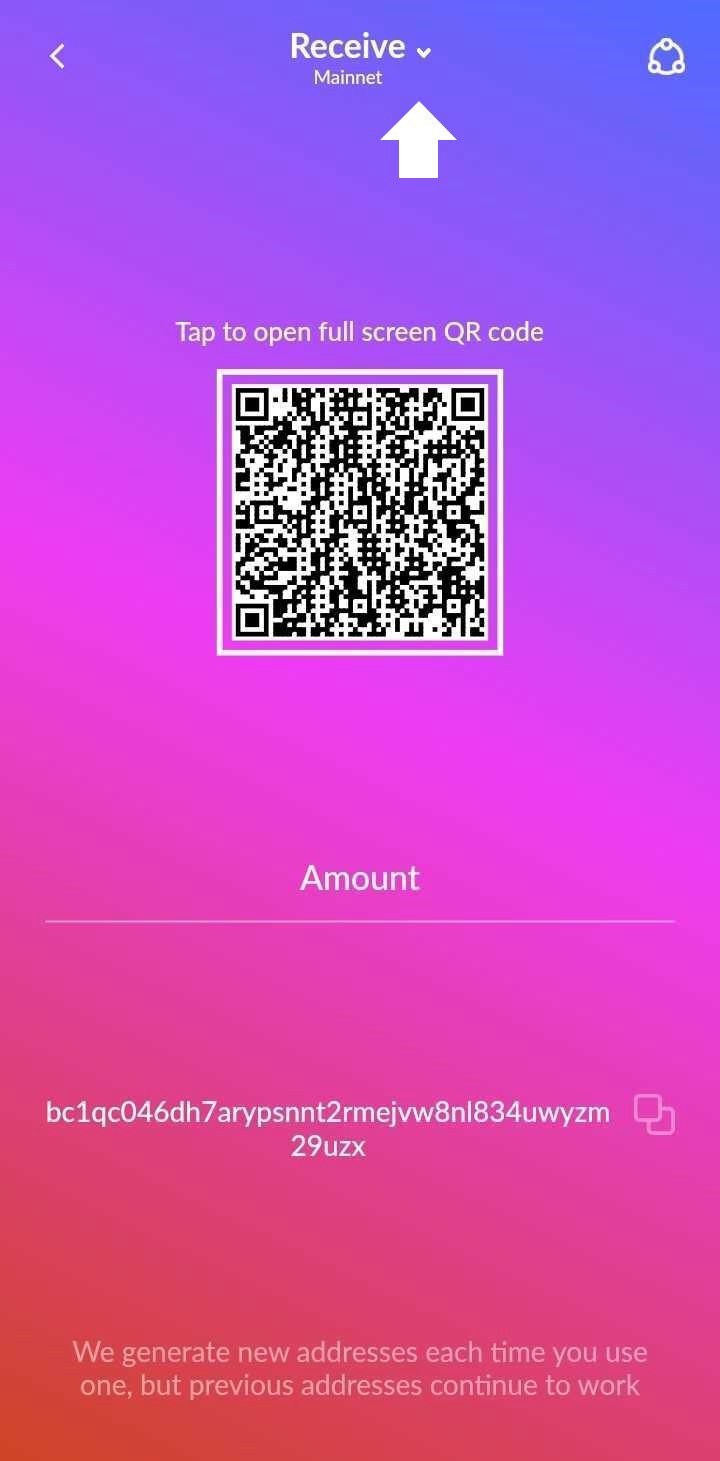
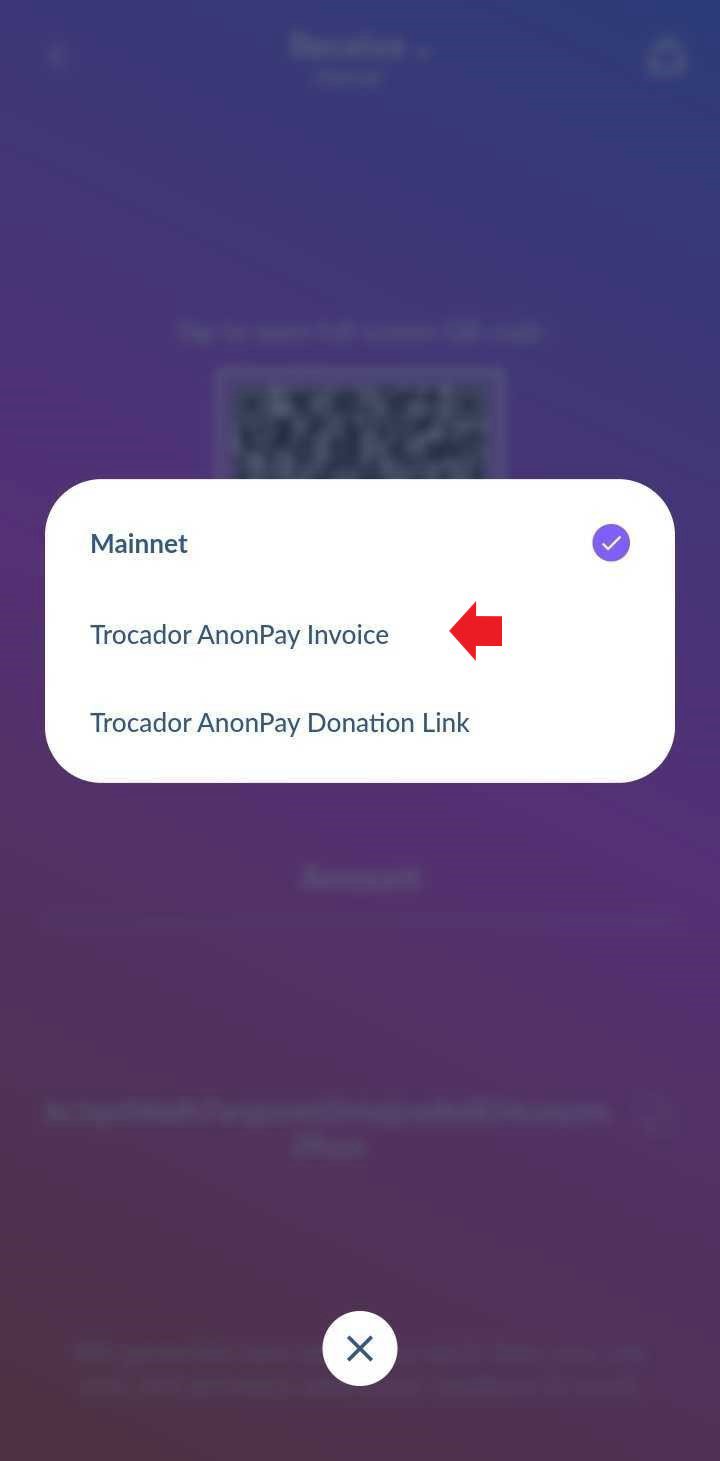
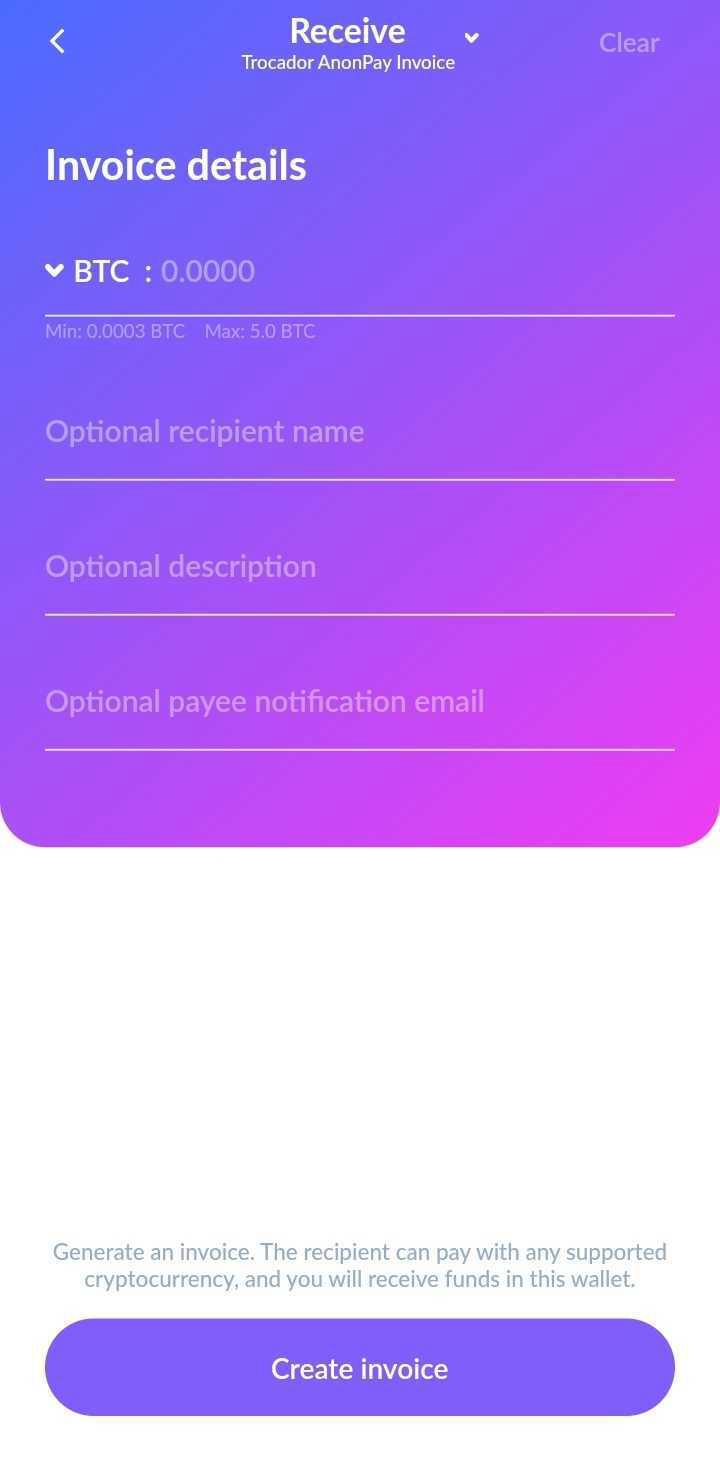
The only mandatory field is the invoice amount. It will default to the cryptocurrency wallet type that you are currently in. You can change this to another fiat currency if you like by clicking on the asset name. The minimum and maximum supported invoice amounts are shown.
You can optionally provide a recipient name, description, and payee notification email. The name and description are shown to the payer. We recommend that you provide an email if you want to receive a notification when the invoice is paid. When done, click "Create invoice".
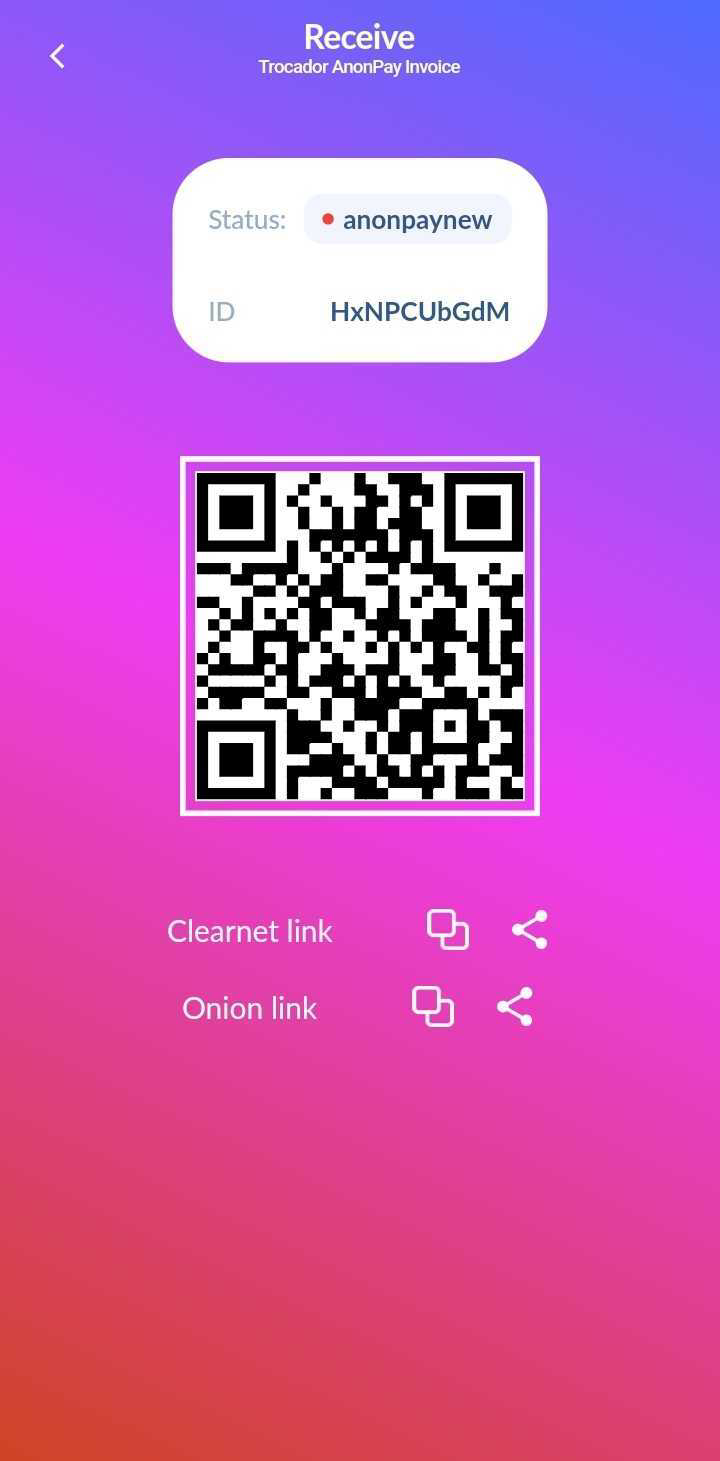
You will be shown a screen with clearnet and onion links, and a clearnet QR code. Share these with the payer. The payer will be presented with a payment portal to complete payment at the link.
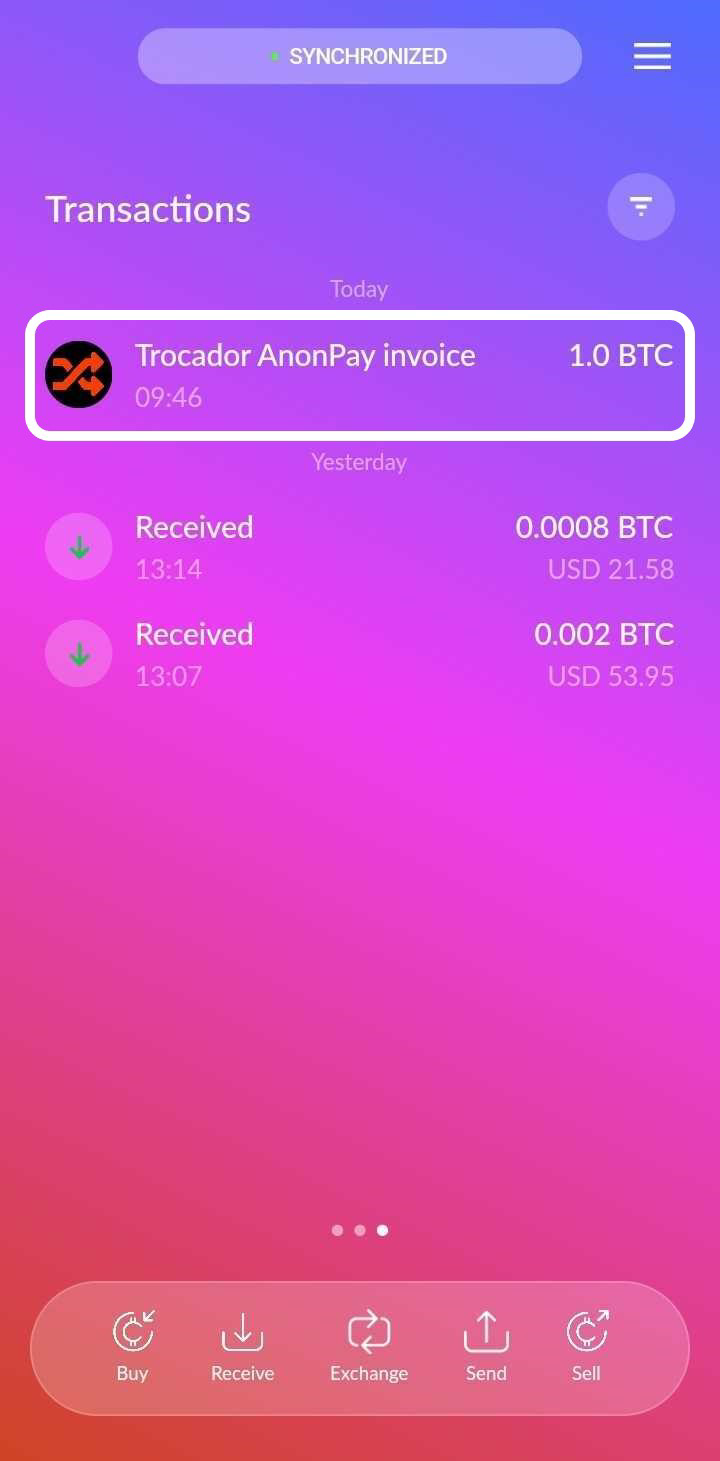
You can access the invoice status in the Transactions list, to the right of the home screen.
Create donation links
Easily create reusable donation links. A donor can donate with any supported cryptocurrency, and you will receive donations in your wallet.
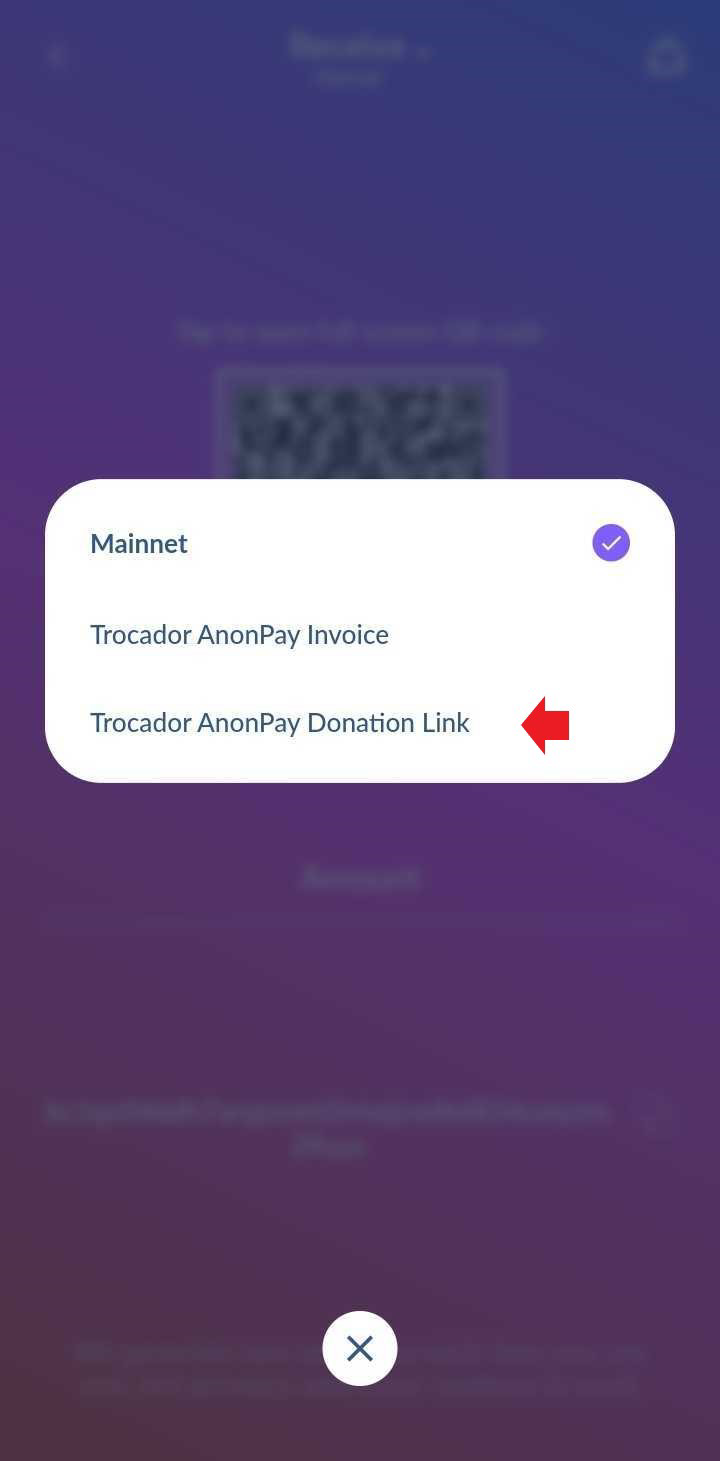
Click "Receive" on the home screen, then click at the top to change "Mainnet" to "Trocador AnonPay Donation Link".
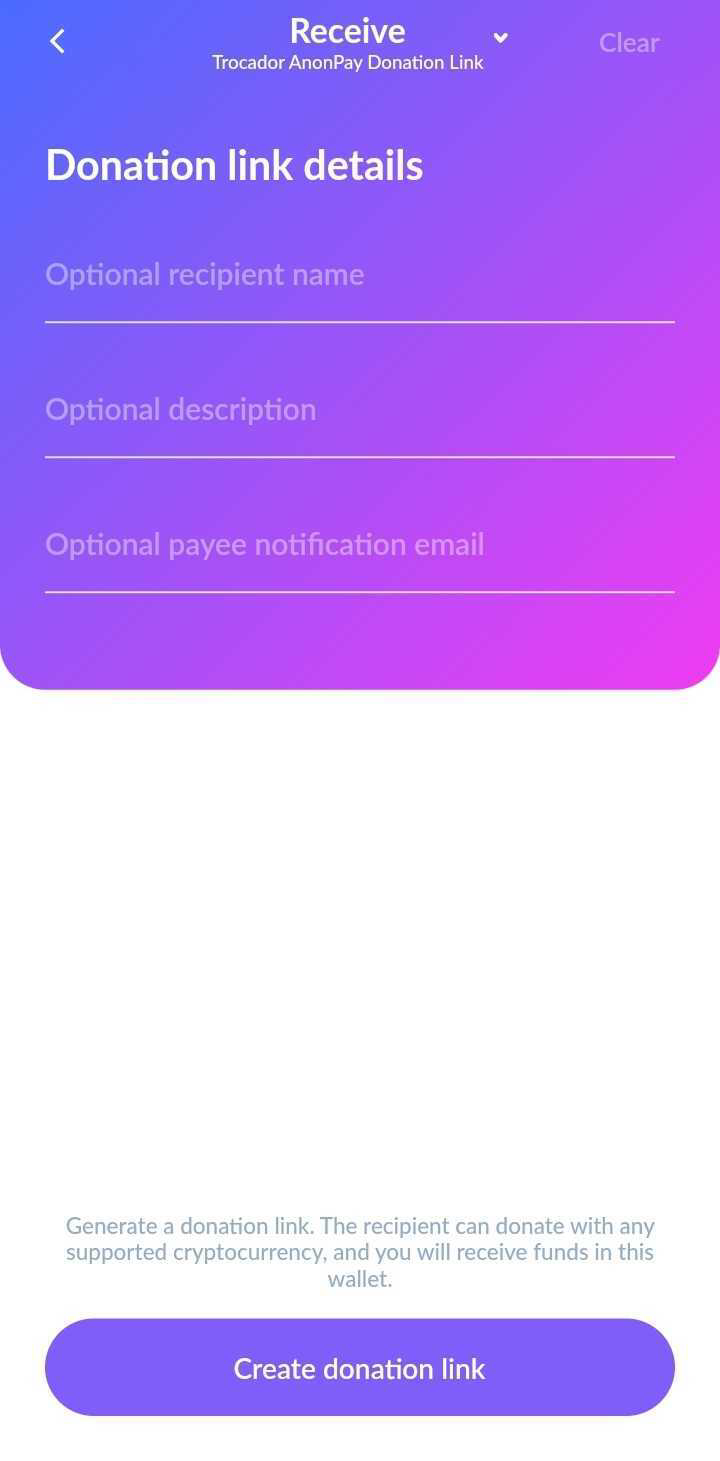
You can optionally provide a recipient name, description, and payee notification email. These are shown to the donor. We recommend that you provide an email if you want to receive a notification when people donate. Note: your email will be shared with donors, since it appears in the donation link. When done, click "Create donation link".
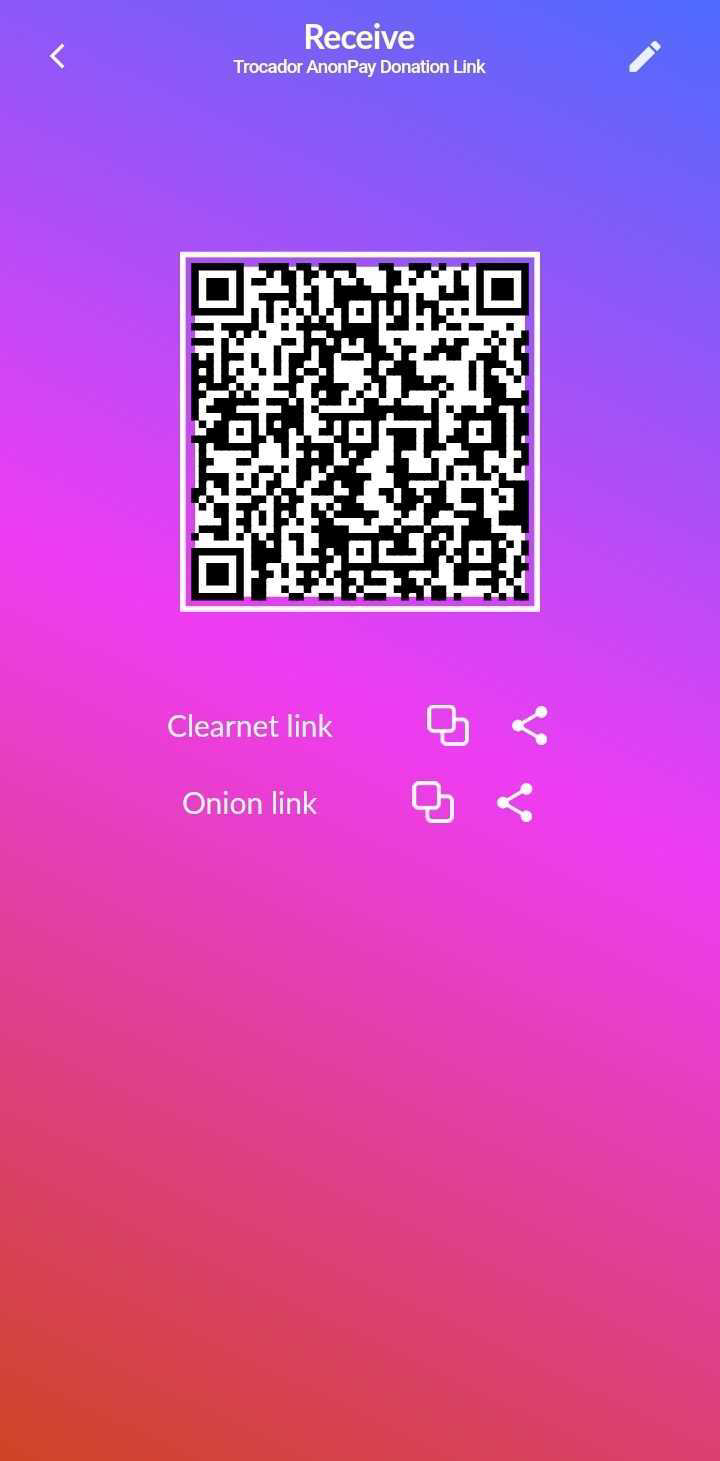
You will be shown a screen with clearnet and onion links, and a clearnet QR code. Share these with the donor. The donor will be presented with a payment portal to complete their donation at the link.
Reusing and editing the donation link
After you create a donation link, you can access it anytime by clicking the "Receive" button on the home screen and then by clicking "Trocador AnonPay Donation Link". The app will save your settings from before.
If you wish to change your donation link settings for that wallet, click the edit icon in the upper right. This will bring you back to the form, where you can edit these details.
Note on notification emails
Notification emails are extremely useful for many use-cases, but you should not rely on them always working. If someone donates or pays an invoice with the same cryptocurrency types as your receiving wallet, then you may not get an email notification. AnonPay is constantly improving to incorporate on-chain payment checks as well, but these are not yet supported.